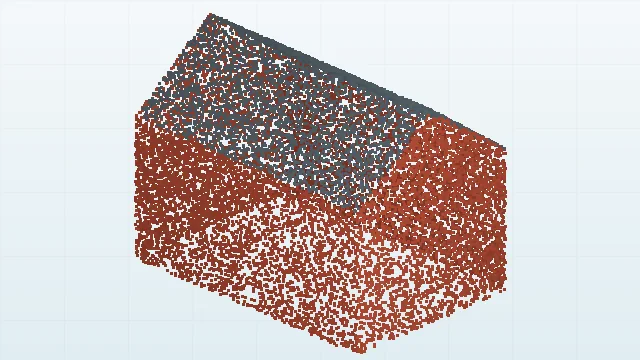
BUILDINGS
A building, from the ground up.
Explore a two-storey building and its source geometry.
TRY ASKING“Inspect this building and identify its main surfaces.”Try this demo
AI FOR CAPTURED REALITY
Turn point clouds into editable CAD and useful deliverables.
Bring a scan. Ask CADground AI. Work through the result, together.
No credit card required · Works in your browser
01 / THE WORKFLOW
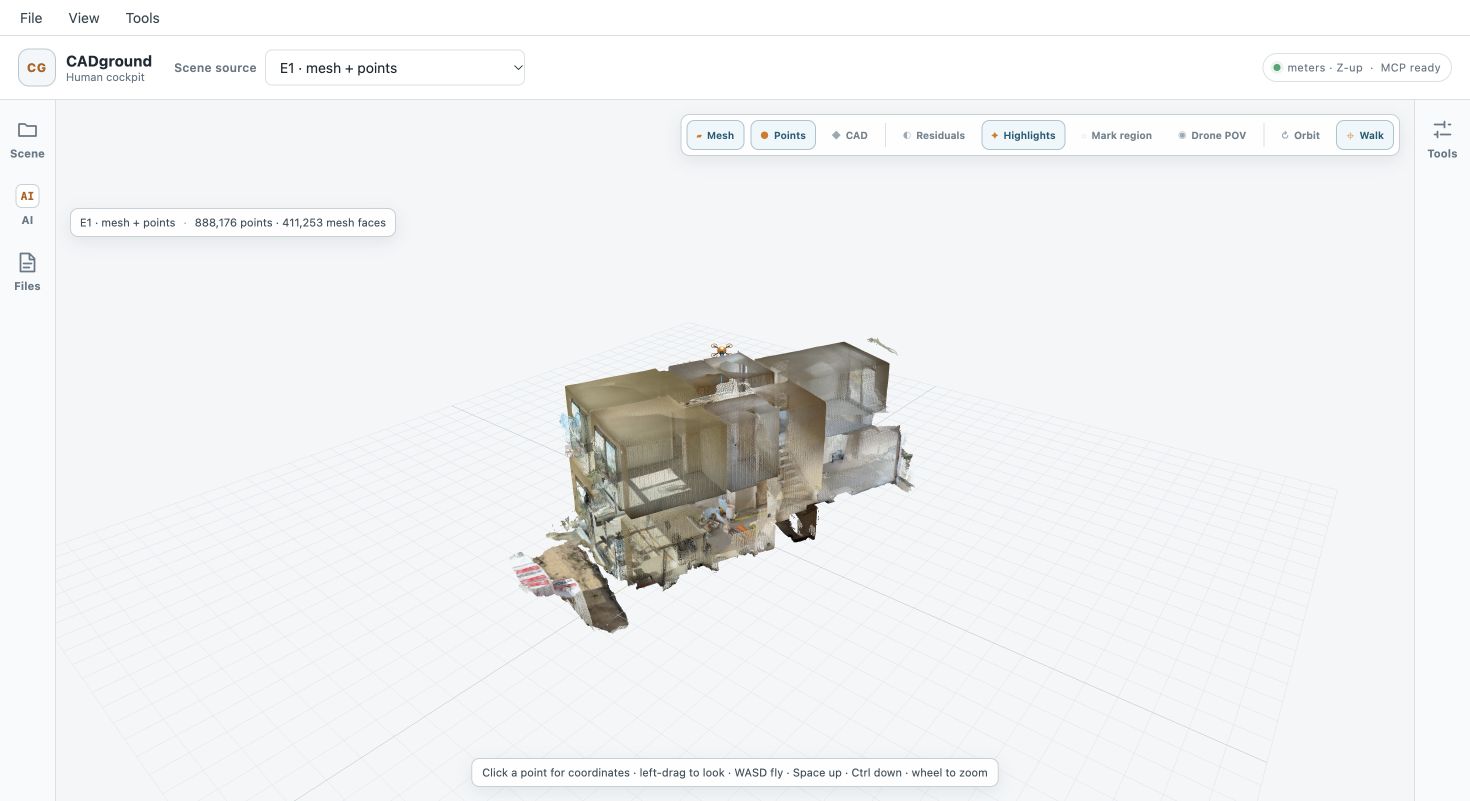
One place for the source, the conversation and the work that follows.
Drop in a point cloud and supporting files, or start with a ready-to-explore demo.
UPLOAD OR PICK A DEMOInspect a detail, measure geometry or work on a reconstruction. Type your task or use voice input.
WORK WITH CADGROUND AIReview the result against the scan. Keep saved geometry, pictures and generated files in your project.
FROM SOURCE TO RESULT02 / START EXPLORING
Eight demo scenes to get your bearings.
Here are three places to start.
BUILDINGS
Explore a two-storey building and its source geometry.
TRY ASKING“Inspect this building and identify its main surfaces.”Try this demo
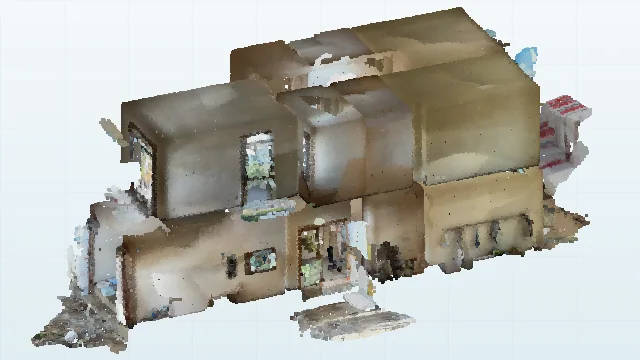
CAPTURED REALITY
Navigate a detailed scan with both mesh and point-cloud views.
TRY ASKING“Take a picture of the current view and describe what you see.”Try this demo
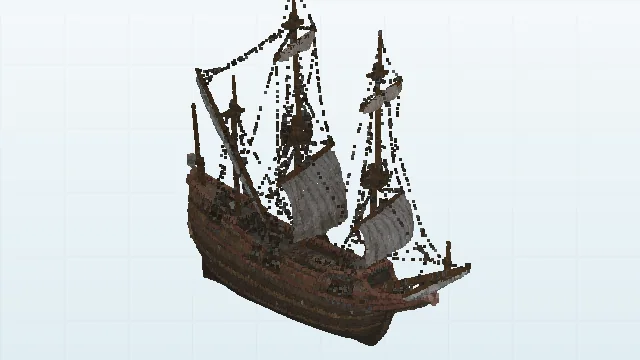
COMPLEX GEOMETRY
Explore a sailing ship from its hull to its rigging.
TRY ASKING“Inspect the hull and explain how you would reconstruct it.”Try this demo
Create an account, then choose your scene in a new project. Demo files become your project’s own copy.
03 / BUILT FOR THE WORK
Use the scan as your reference while AI helps you move the task forward.
Navigate the scene, focus on an area and use calibrated observation and measurement tools.
Work on editable CAD geometry and compare it with the source point cloud.
Ask AI about the current view. Open generated picture previews directly in the conversation.
Manage project files and outputs, view PDFs and reopen your saved scenes. Review AI-generated measurements, geometry and documents against the source before using them.
04 / YOUR AGENT, YOUR TOOLS
External MCP is a Pro capability. Check Connect AI on your project page to see whether it is enabled for your environment.
Cloud MCP · ProAvailable on Pro when enabled for your environment.
05 / START SMALL. KEEP GOING.
Explore the workflow first. Move your work to a dedicated environment when you’re ready.
FREE
$0
For exploring CADground and trying your first scene.
No credit card required.
PRO Early access
$49 / month per organization
Planned price in US dollars. Live paid checkout is not available yet.
Upgrade your existing project from inside the app. Additional project creation is not available yet.
Commercial storage, upload and AI allowances are still being finalized for release. Credit purchases are not available yet. See the guide for the current workflow.
No. Create a free account and choose one of eight demo scenes, or upload your own files. Your selected demo is copied into your project, so your work is separate from other users.
CADground supports PLY, PCD, E57, LAS and LAZ point-cloud imports. Original files are retained alongside the browser-ready preview. You can also add supporting images and PDFs to your project.
Your project files, saved scene and generated artifacts move to a dedicated environment. The current upgrade does not transfer chat history; previous conversations remain in the Free environment.
On Free, keep the project editor open while AI works. Closing all editor tabs for that scene stops the task after a short reconnect window. Reopen the conversation to see the interruption and send a new message to continue. Pro uses its own managed browser and can continue after you close the editor.
Yes, on Pro when enabled for your environment. Copy the MCP URL from Connect AI on the project page, add it to a compatible remote MCP client, sign in and approve project access. Choose your model in that client; its provider handles AI billing. You can revoke the connection from the project page.
Free allows one private project per organization. Archiving it keeps that slot occupied; permanently deleting it frees the slot. You can keep multiple scenes and supporting files in the project. Pro currently upgrades that existing project; creating additional Pro projects is not available yet.
No. Free needs no payment card and does not automatically become a paid subscription. The planned Pro price is US$49 per month per organization. Live paid checkout is not available yet; any enabled Mollie test checkout is clearly marked and does not charge real money.
AI work is subject to available service capacity. The Usage page reports AI requests and input, output and cached tokens for your organization. It refreshes when you open it, change the reporting period or select Refresh usage. Included AI allowances are being finalized; credit purchases are not available yet.